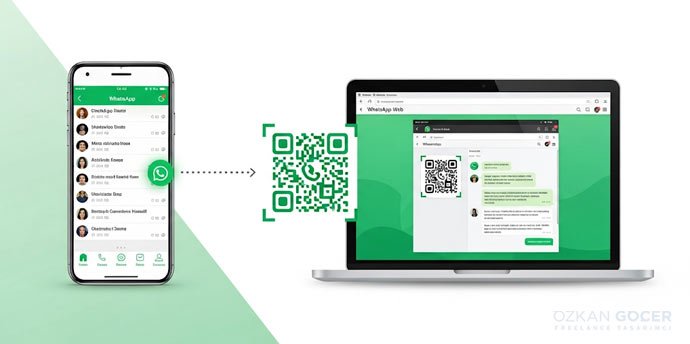
Linking a new computer is different from keeping your phone online every time you use it. Once linked, the computer connects independently. The practical question is whether you know which sessions remain signed in, especially after using a shared machine.
The Official Login Page and the Download Option
Type web.whatsapp.com into the address bar. Whether you searched for WhatsApp Web login, desktop login or WhatsApp Web download, that is the browser destination. A search result using the WhatsApp name is not necessarily the official service.
The login screen checked on October 18, 2026 showed a QR area, a phone-number sign-in link and a stay-signed-in checkbox. A separate banner offered the Windows application. You do not need to select that download to sign in through the browser.
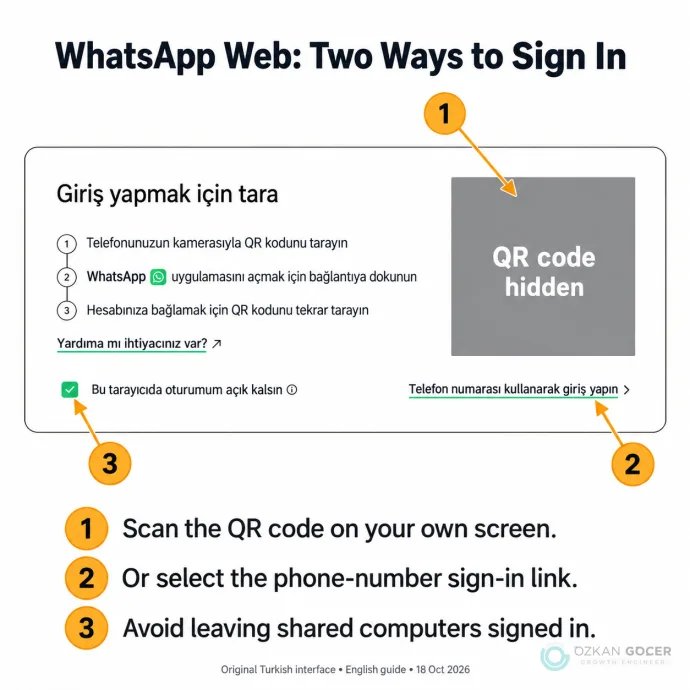
The captured interface is Turkish; the numbered English instructions explain the corresponding controls without inventing a translated screen. The QR code has been hidden. Use the fresh code on your own computer. No account was linked and no messages were accessed during this check. Depending on your interface, the alternative link may read Log in with phone number or Link with phone number.
Link Android or iPhone With a QR Code
- Open the official page on the computer. On a shared machine, clear the option to remain signed in.
- On Android, open WhatsApp's three-dot menu and choose Linked devices. On iPhone, go to WhatsApp Settings → Linked Devices.
- Choose Link a device and complete the phone's unlock or biometric check if prompted.
- Use the scanner opened in WhatsApp to scan the QR code displayed on the computer. The phone scans the computer screen, not the other way round.
- Wait for linking and message loading, then check the new computer in your linked-device list.
The current web screen can also offer a route beginning with the phone's normal camera and taking you into WhatsApp. Follow its displayed instructions if you use that route. Starting from Linked devices inside the app makes it easier to keep track of the account you are authorizing.
Sign In With a Phone Number Instead of Scanning
The phone-number linking option is useful when a camera cannot read the QR code. It still requires authorization on your primary phone; knowing an account's number is not enough to sign in.
- Select the phone-number option on the web page, choose the country and enter your existing WhatsApp account number.
- Find the eight-character code shown on the computer.
- Follow the linking notification on your phone. Alternatively, use Linked devices → Link a device → Link with phone number instead.
- Check the device being linked and enter the computer's code on your primary phone.
Do not confuse a device-linking code with an SMS registration code. Decline a linking request you did not start. A request to scan somebody else's QR code to claim a reward or “verify” your account is a reason to check for phishing, not an extra setup step.
Does Your Phone Need to Stay On?
The standard linked-device arrangement supports up to four companion devices. A linked computer can work while your phone is offline, but the computer still needs internet access. Linked sessions can be logged out if you do not use WhatsApp on your primary phone for more than 14 days.
“WhatsApp on a laptop without a phone” can mean two different things. Using an already-linked computer while the phone is temporarily off is possible. Authorizing a new computer without access to the account's primary device is a different request. Do not apply the allowances of paid WhatsApp Business offerings to a standard personal account.
Missing older messages on the computer also does not necessarily mean they were deleted. A linked device may not display the same history as the primary phone. Check the conversation on the phone before reinstalling the app or rebuilding the account just because an old message is absent.
Web, Desktop and Mobile: Which Should You Use?
Scroll sideways to read every column. Keyboard: focus the table and use the arrow keys.
| Task | Start with | Check |
|---|---|---|
| Typing messages and sharing computer files | WhatsApp Web | No download is needed; link the correct account. |
| Voice or video calls on a computer | The official Windows or Mac app | If your web account has no calling control, use the app and check camera/microphone permissions. |
| The same account on a second phone | The official app's companion-device setup | Distinguish linking an existing account from registering a new one. |
| Brief use on a shared computer | A controlled web session | Turn off persistent sign-in and verify logout from your phone afterwards. |
The browser supports everyday messaging, documents, images and voice messages. Do not assume every mobile feature has an identical web equivalent. Calling availability should be checked in your account and current support information rather than treated as a permanent, universal yes or no. Obtain desktop software from WhatsApp's download page; similarly named browser extensions are not required.
For separate work and personal accounts on one computer, consider different browser profiles and link each account from its own phone. Profiles separate browsing information; they are not an access lock against someone who can use the computer.
How to Log Out of WhatsApp Web
Use Settings → Log out in the computer's WhatsApp client. If the computer is no longer with you, open Linked devices on the primary phone, choose that device and log it out. The official unlinking instructions distinguish ending a companion session from signing out of the primary account.
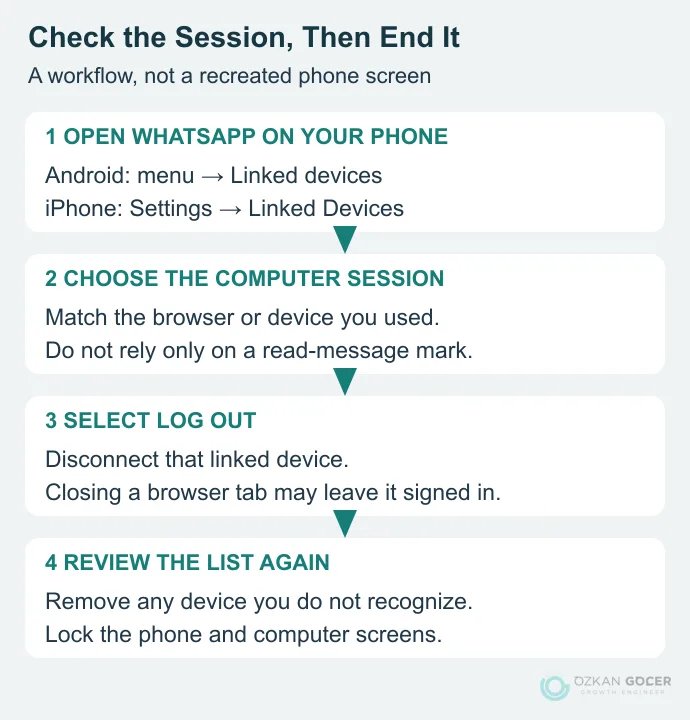
Closing a tab can leave the account signed in, especially when persistent sign-in was selected. End the session deliberately. Remember any documents downloaded on a shared machine: logging out does not retrieve files already saved to that computer.
Can You Tell Whether Somebody Else Is Connected?
Review Linked devices on your phone and remove a session you do not recognize. A message appearing as read does not identify who accessed your account. WhatsApp's account-access guidance says it cannot provide the identity or exact access time and location of the person who used it.
End-to-end encryption does not hide messages displayed on an unlocked screen. Lock both devices and be selective about browser extensions. Consider account protections such as two-step verification, while remembering that enabling an extra safeguard is not a substitute for ending an unwanted linked session.
Fix WhatsApp Web Login and Connection Problems
Identify the stage that fails. A page that will not load, a QR code that will not scan and an already-linked account that cannot send messages need different checks. The following is a troubleshooting sequence, not a claim that each symptom has only one cause.
Scroll sideways to read every column. Keyboard: focus the table and use the arrow keys.
| Symptom | First check | Next step |
|---|---|---|
| The page will not load | Is the address correct, and do other sites open? | Try an updated browser. Ask the administrator about restrictions on a work or school network. |
| The QR code will not scan | Are you using Linked devices in the intended account? | Refresh the code, clean the camera lens and screen, or use phone-number linking. |
| The linking code is rejected | Is it current, with the correct country and number? | Use a fresh code on your own primary phone. Do not send it to somebody else. |
| Messages or pictures will not send | Is the computer online? Does only one file fail? | Try a small, non-sensitive sample file to narrow down the problem. |
| You repeatedly have to sign in | Is it a private window, or are site data cleared on exit? | Review settings on your own machine. Persistent login is not the right fix on a shared computer. |
| An old conversation is missing | Is it visible on the primary phone? | Update the apps and check linking before deleting or rebuilding the account. |
Extensions can interfere with the page; WhatsApp discusses this in its browser-extension warning guidance. Comparing with a clean browser profile is a narrower check than deleting all browser data. Clearing WhatsApp's site data may sign you out, so ensure you can access the primary phone before doing it.
If you use a VPN, compare the connection path where permitted, without disabling required workplace protections. The VPN guide's connection and privacy explanation helps distinguish what a VPN changes. A failed connection alone does not prove that either the VPN or WhatsApp is at fault.
After connecting, check three things: the intended account is open, the expected computer appears in Linked devices, and you know how to end that session. That gives you control over both the login and what happens when you leave.