Try These First: 5 Quick Universal Fixes
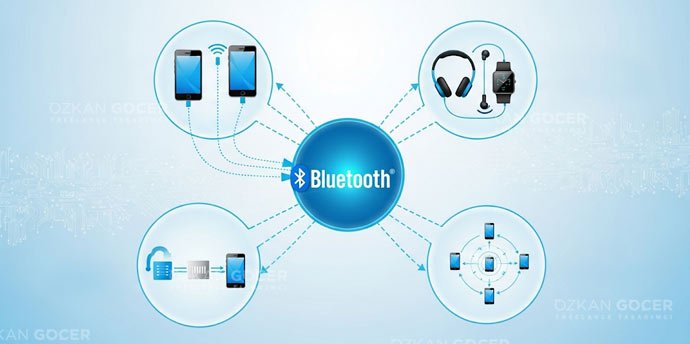
Whatever the device, most connection problems are solved by one of these five steps:
- Toggle Bluetooth off and on: turn Bluetooth off and back on on both devices; a stuck connection often refreshes.
- Bring the devices closer: range and obstacles matter; keep the two devices near each other.
- Restart: powering the phone, PC, or accessory off and on clears small software glitches.
- Check the charge: low battery blocks the connection on some accessories; charge the accessory.
- Remove the old pairing: delete the device from the list (forget) and re-add it; a corrupted pairing record is the most common cause.
These five quick steps fix most cases; if the problem persists, jump to the section for your device type below.
Phone Won't Connect (Android & iPhone)
When Bluetooth won't connect on a phone, the issue is usually the pairing record or the device staying connected somewhere else. The logic is the same on Android and iPhone: try the quick steps first, then refresh the pairing.
Forget the pairing and re-add the device
In the phone's Bluetooth settings, tap the accessory and choose "Forget" or "Remove device," then put the accessory in pairing mode and add it again. Make sure the accessory is not connected to another phone, tablet, or computer at the same time, because most Bluetooth accessories connect to only one device at a time. On Android, resetting connection settings, and on iPhone resetting network settings from the same menu, can clear stubborn problems; the maker's official help pages give device-specific steps.
Windows PC Won't Connect
When Bluetooth won't work on a Windows PC, the most common cause is driver and service issues.
Driver, Bluetooth service, and the built-in troubleshooter
First check that the Bluetooth service is running, then update or reinstall the Bluetooth driver from Device Manager, and run the built-in Windows Bluetooth troubleshooter. If the driver is outdated or corrupted, the adapter cannot find devices; installing the latest driver from the maker's site usually fixes it. You can find the detailed steps in Microsoft's official guide. I also cover the laptop and Windows-on-ARM side in my Snapdragon and M4 article.
Headphones or Speaker Won't Pair
When headphones or a speaker won't pair, the issue is usually that the device is not entering pairing mode.
Pairing mode and factory reset
Most headphones and speakers enter pairing mode when you hold the power button or a dedicated pairing button for a few seconds; the light usually starts flashing. If the device still does not appear, factory-reset it per the maker's instructions, because old saved pairings can block a new connection. After a reset, also delete the old pairing from your phone and add the accessory fresh; the support pages of Apple and other makers give model-specific reset steps.
Car Bluetooth Won't Connect
When your phone won't connect to your car's Bluetooth, delete the phone from the car's paired list, remove the car from the phone, and pair from scratch. Some cars limit how many devices can connect at once, so you may need to remove old phones from the list. During pairing, put the car and phone in pairing mode, confirm the on-screen code matches on both sides, and make sure the car's software is up to date; you can study the technical side of the standard from the Bluetooth SIG.
When It's a Hardware Problem
If the software steps fail, a simple test tells you whether the issue is hardware: if the same accessory connects to a different device, the problem is your device; if it connects to nothing, the accessory is at fault. When Bluetooth fails on multiple devices and all software steps fail, it may be an adapter or antenna fault. Keeping your device updated and secure also helps overall stability; I cover the device-security side in my cybersecurity article. If you suspect a hardware fault, contact an authorized service, because opening the device yourself can void your warranty.