An empty Page gives an invited visitor little reason to follow. Start by answering “What will I find here?” A software business might explain a product change; a manufacturer might show a material-selection mistake; a consultant might work through a decision customers regularly struggle with.
Personal Profile or Company Page?
LinkedIn distinguishes a profile representing a person from a Page representing an organisation. Manage the business Page through your real personal account instead of creating a member account under the company name. A profile cannot be converted into a Page.
The two spaces do not need identical posts. Use the company Page for a service explanation, product update or permitted project example. A founder or specialist can discuss a decision behind that work on their own profile. Neither format is guaranteed to outperform the other for reach.
How to Create a LinkedIn Company Page
Search for the company first. If its Page already exists, request admin access instead of creating a duplicate. LinkedIn’s setup recommendations also call for a real personal name and a confirmed account email address.
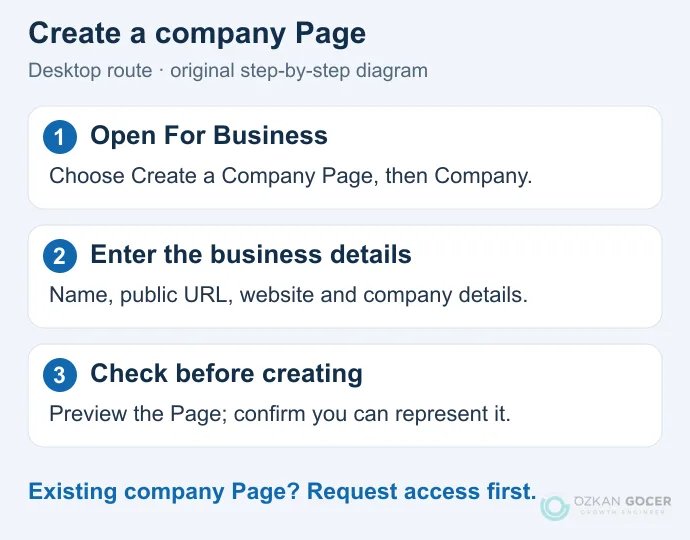
- On desktop, open For Business → Create a Company Page.
- Choose Company for a regular business. A Showcase Page is associated with an existing Page.
- Enter the company name, LinkedIn public URL, website, industry, size and type. The Page URL and website address are separate fields.
- Add the logo and a short description, then check the preview.
- If authorised to represent the organisation, review and confirm the declaration before creating the Page.
The official creation instructions support desktop and iOS; Page creation is not supported in the Android app. The diagram below summarises the desktop route. We inspected the live creation form without creating a Page.
If the form reports insufficient connections, do not send random requests. The troubleshooting page specifies more than one connection and a wait of at least one day for a newly created account. A taken URL or requested workplace verification can also block creation. Follow the actual error message rather than an old claim that every account needs hundreds of connections.
Explain the Business Before Asking People to Follow
Replace “Innovative solutions shaping the future” with a clear description of the work. For a fictional manufacturer, “We make filling and labelling machines for small food producers” identifies the offer and intended customer. Use the About section to explain the scope, area served and contact route.
Open Edit Page in the admin menu. LinkedIn’s completion checklist includes industry, company size, description, logo, website and location. If the Page supports several languages, complete each description rather than pasting the same text into every language field.
The current English image specification, checked on 20 October 2026, lists a 1512 × 256 px company cover and a recommended 400 × 400 px logo, with PNG/JPEG files up to 3 MB. The creation form can still show a 300 × 300 logo recommendation. Check the upload control and current documentation together instead of copying an old size chart. Keep essential cover information away from edges that may be cropped on another screen.
Assign Admin Roles Without Sharing a Password
Give each person access appropriate to their work. The Page permissions table separates three main roles:
Scroll sideways to read every column. Keyboard: focus the table and use the arrow keys.
| Role | Main use |
|---|---|
| Super admin | Manage admins, Page information and overall administration. |
| Content admin | Publish content, interact as the Page and send follow invitations. |
| Analyst | View and export analytics. |
In super admin view, use Settings → Manage admins → Add admin, select the person and role, then save. The admin setup instructions explain eligibility, including following the Page. Keep a second trusted super admin who can maintain business access, and review permissions when someone leaves. Access rights do not decide who approves a draft; record that separately in your content and approval responsibilities.
Invite Relevant Connections to Follow
Use Invite to follow to choose first-degree connections likely to find the Page useful. The invitation comes from your personal profile and asks them to follow the Page; it is different from a connection request. The invitation requirements include completing the Page’s industry, size and overview information.
Under the current credit rules, admins share the allowance and the monthly limit renews on the first day of the month. Sending an invitation uses one credit; acceptance can return it within 72 hours. A rejected or withdrawn invitation is not a way to recover credit.
LinkedIn says it is rolling out changes to invitation limits, so a universal allowance of “50” or “250” is misleading. Read the balance in your own invitation window. If two admins are inviting people, agree on the list and timing first. Think about why the recipient would want the content instead of treating an unused allowance as a target to exhaust.
What Should a B2B Company Page Post?
Show a useful part of a customer decision instead of announcing that you are an industry leader. A single post does not need to contain everything your business knows. Three possible starting points:
- A comparison: A blank table showing which maintenance and installation costs to ask about when comparing machine quotations.
- A demonstration: A frequently missed software setting, explained through an actual screen with private information hidden and three short steps.
- A decision: Two design options and why one was rejected. Show a legibility or production constraint rather than calling the other option “more professional.”
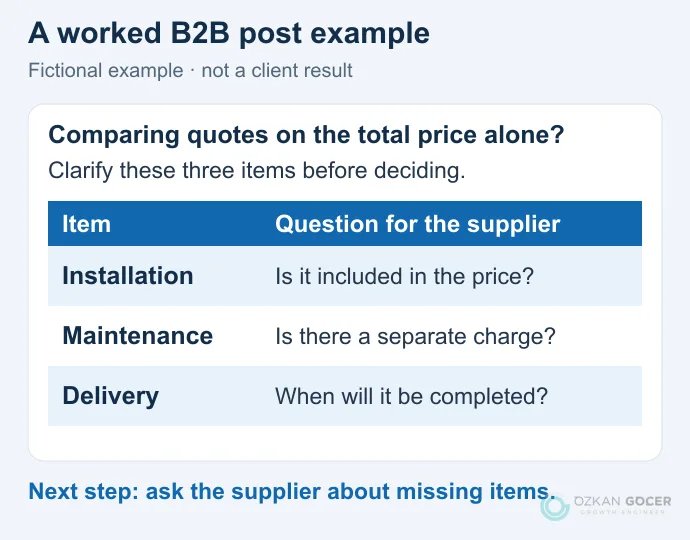
The quotation comparison above is a teaching example, not a client project or measured success. For a real case, explain the problem, the change and how the result was measured. Agree on publication rights and redactions before using a customer’s name, screen or results.
Give the reader an action they can use: “Ask whether maintenance is included in your next quotation.” Every post does not need to end with “What do you think?” If employees choose to share it, leave room for their own explanation instead of distributing identical praise for everyone to paste.
Choose a Publishing Routine You Can Maintain
A first trial could be two posts a week: one customer question and one practical example. That is a workload suggestion, not an algorithm rule. Reduce the number if it leaves too little time to answer comments or prepare an accurate visual. Keep the topic, owner, approval and publication date together in your content calendar.
To schedule a supported post, open Page posts → Start a post and use the clock icon. LinkedIn’s scheduling instructions allow one hour to three months ahead; some formats, including polls and reshares, are excluded. Check the date, time zone, attachments and destination link. Scheduling does not establish that an offer or event date will still be accurate when the post goes out.
Which LinkedIn Analytics Should You Read?
Open Analytics in the admin menu. The navigation instructions lead to separate content, visitor, follower and search appearance reports. Start with equal-length comparison periods. For a new Page with no previous data, label the first period as a baseline.
Scroll sideways to read every column. Keyboard: focus the table and use the arrow keys.
| Area | Question | Next check |
|---|---|---|
| Content | Which topic and explanation prompted a response? | Compare similar posts; distinguish paid promotion. |
| Followers | Are relevant professions and industries represented? | Read the audience mix alongside total growth. |
| Visitors | Are people exploring the Page? | Separate Page views from unique visitors. |
| Website and enquiries | Does interest turn into suitable business enquiries? | Check the link, destination and enquiry quality. |
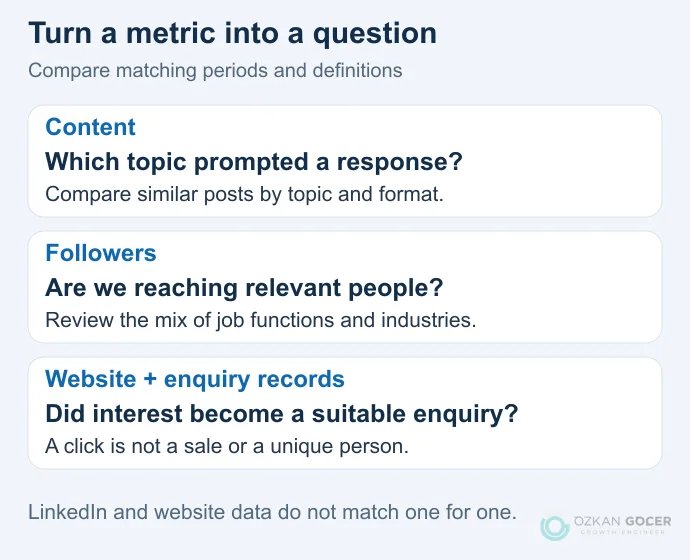
The analytics definitions describe different questions, not interchangeable success scores. A widely viewed post might produce no sale. A technical explanation with few reactions might answer a potential customer’s question. Without an enquiry record, the second scenario remains a possibility, not a result you can claim.
Use consistent UTM tags on website links and check that your measurement setup works. LinkedIn clicks, GA4 sessions and business-qualified enquiries count different things. The worked social media report explains how to keep sources and calculations separate. Paying for Premium does not remove those measurement limits; first identify a specific task the free Page cannot meet.
Start today by checking the description and admin access. Then choose one question customers regularly ask and prepare one clear post answering it. Let actual follow-up questions and measurable results inform the next piece.
If your content ideas are ready but the Page cover, posts and document designs look disconnected, we can work together on graphics and templates for LinkedIn. Share your existing brand files and two or three examples, so we can define a visual approach your team can maintain.