For example, a form may show an error after you press Submit while the report records a new enquiry. That measurement tells the wrong story. This guide moves from website setup to checking for such mistakes. The steps follow Google documentation checked on 13 October 2026. Screens captured from the real Analytics interface that day have private details hidden and numbered guidance added. They help you find the controls; they do not present client results or a completed installation test.
What Does GA4 Show, and What Are Its Limits?
Within the limits of your measurement setup, GA4 helps examine traffic sources, pages used and completed actions. A page view is an event; event-based collection does not mean sessions have disappeared. Every button, sale and cross-device journey is not tracked automatically.
The standard Google Analytics product is free. Implementation work, additional tools and paid Analytics 360 are separate considerations. GA4 replaced Universal Analytics, so an old UA- tag does not prove a new setup works. Begin with a business question and connect it to the objective in your digital marketing plan.
1. Separate Account, Property and Web Stream
The account provides the organizational and access layer. A property contains reports and measurement settings. A data stream supplies data from a website or app. Choosing another business’s property can leave you looking at the wrong report even if the tag itself works.
- Sign in with the appropriate Google account. If a property already exists, obtain access from its owner before creating a duplicate.
- For a new setup, create the required account or property in Admin. Choose a clear name, reporting time zone and currency.
- Use Data streams → Web to add the website. Copy the measurement ID from the stream details; a GA4 web measurement ID begins with
G-. - Review enhanced measurement options. Enabling them does not prove that every form or sale is measured correctly.
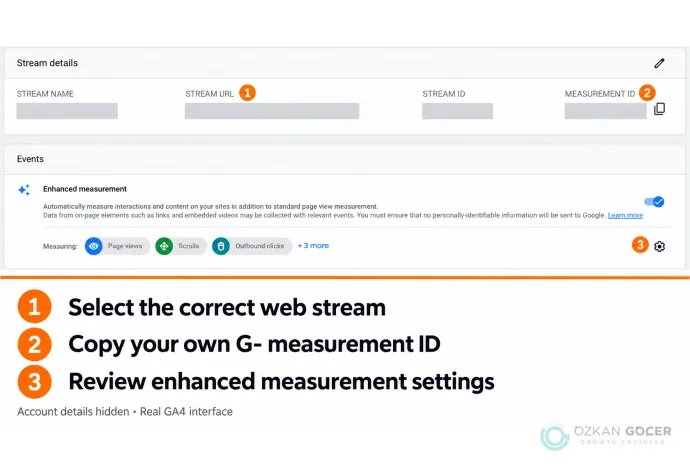
Open Admin → Data collection and modification → Data streams and select your existing web stream. In the image, use 1 to check the website URL, 2 to copy your own G- measurement ID, and 3 to locate the enhanced measurement settings gear. The example identifiers are hidden. You do not need a second stream if the correct one already exists.
Property creation requires appropriate access, and unavailable permissions can hide controls. Follow Google’s website setup instructions when checking the account and property. Interface grouping may change; the chosen property and stream remain the essential references.
2. Install the Tag through One Method
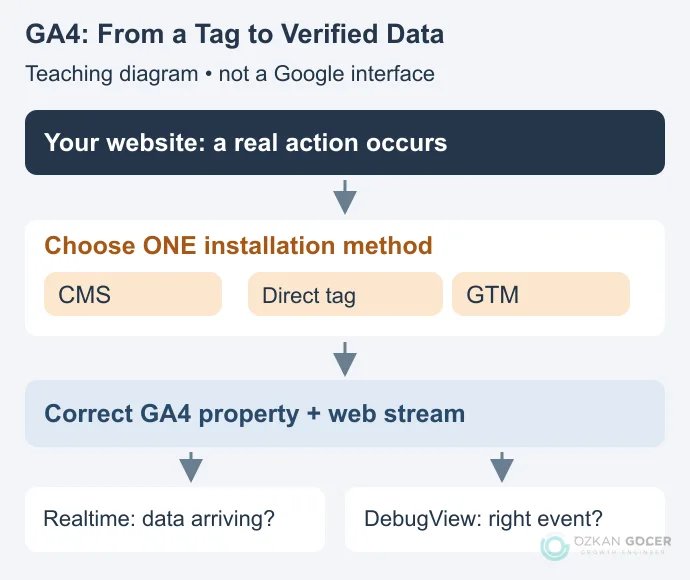
First investigate whether tracking is already installed. Adding the same measurement through a theme, plugin and Google Tag Manager can cause duplicate events. Google Tag Manager (GTM) manages tags; GA4 analyzes incoming data. They perform different jobs.
Scroll sideways to read every column. Keyboard: focus the table and use the arrow keys.
| Method | When it can fit | Check |
|---|---|---|
| CMS or platform integration | Your platform provides a supported GA4 connection. | Is the ID correct, and does another plugin add the same tag? |
| Direct Google tag installation | You control shared page templates. | Is the stream’s code on the required pages in the instructed location? |
| Google Tag Manager | You want centralized tags, triggers and versions. | Is the correct container installed, and is the change published? |
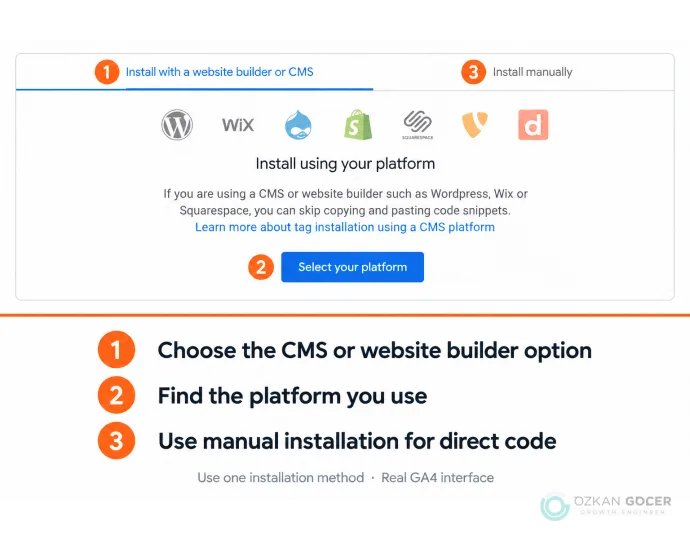
In the web stream details, open Google tag → View tag instructions. Below, 1 selects the CMS or website builder route and 2 opens your platform instructions. If you will insert the code yourself, use the alternative 3 — Install manually tab. If you use GTM, do not also paste this code into your theme; follow the GTM steps below.
For GTM, open the container and choose Tags → New → Google tag, then enter the correct tag ID. Google’s current basic instructions specify Initialization – All Pages as the trigger. Test it with your consent setup; the trigger does not remove consent requirements. Validate in Preview before publishing. Follow the current Google tag instructions rather than searching for the old “GA4 Configuration” tag name.
3. Validate with Realtime and DebugView
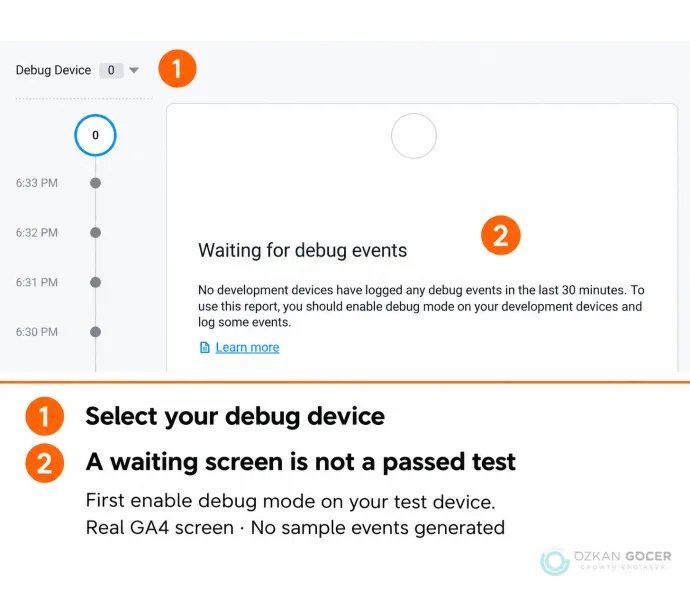
Open the website on a test device. Realtime provides a first indication that data is arriving. DebugView requires debug mode on the test device; Tag Assistant or GTM Preview can enable it. In the correct property, go to Admin → Data display → DebugView, select your device and inspect the actions you perform.
The 1 — Debug Device control selects a device sending debug events. 2 — Waiting for debug events and a device count of zero show that no debug events were available in this capture. First enable debugging on your test device with Tag Assistant or GTM Preview and perform an action on the website; then check the device and incoming event here. This waiting screen alone does not mean that the website sends no analytics data.
Checking that a tag fired differs from checking that it measured a successful enquiry. Run the following tests on your application; the table does not claim that these tests have already been performed.
Scroll sideways to read every column. Keyboard: focus the table and use the arrow keys.
| Test | Expected behavior | Where to investigate |
|---|---|---|
| Open a normal page once. | One page_view for that view. | Duplicate tags, another plugin or custom page-view code. |
| Submit with a required field empty. | No successful-lead event. | A trigger tracking a button click instead of success. |
| Complete a valid test enquiry. | One lead event after the application confirms success. | The submission response and event condition. |
| Refresh the thank-you page. | The same enquiry should not count as a new customer. | Transaction identification or application logic that prevents repeats. |
| Try different consent choices. | Tag behavior should follow the intended consent setup. | Default settings and consent updates. |
If no data appears, check the property and stream ID, published version, presence of the tag and blockers in the test browser. Confirm the device selected in DebugView. Standard report processing can take 24–48 hours, so do not expect initial collection checks and a completed reporting comparison at the same time. Waiting does not repair a missing or broken tag.
4. Distinguish Events, Key Events and Ads Conversions
Events may be automatically collected, collected by enhanced measurement, recommended or custom. Examples include generate_lead for a successful enquiry and purchase for a purchase. Using a suitable name does not ensure that the event fires under the correct conditions.
A key event measures an action important to the business. A successful enquiry may qualify; treating every page view as equally valuable makes evaluation harder. Marking an event does not retrospectively change historical data. Review existing automatic key-event settings too.
To use the action for Google Ads bidding, separately complete the process of creating an Ads conversion from Analytics data. Check which campaign goal uses each action and avoid optimizing for two separate measurements of the same sale. The conversion checks in the Google Ads setup guide explain the advertising side of this connection.
An Additional Check for Ecommerce
Installing a tag on a product page does not complete sales measurement. Ecommerce events need appropriate transaction IDs, items, values and currency. Failed payments should not count as purchases, and reopening an order should not create a new transaction. Compare a test order against the store record and investigate the implementation before interpreting revenue differences.
5. Open the First Report with One Question
“Which traffic sources produce valid enquiries?” is a useful starting point. In the Traffic acquisition report, examine session source/medium with the relevant key event. User acquisition concerns first acquisition, so the two scopes need not produce identical numbers. Keep dates, time zone and the selected event consistent when comparing results.
Use a consistent UTM naming convention on email and social campaign links. Capitalization differences in utm_source, utm_medium and utm_campaign can split reporting rows. The UTM and source distinction in the social reporting guide provides an application example.
An organic visit does not necessarily reveal the exact query the person entered in Google. Use Search Console for search queries, impressions and clicks. When making financial decisions, preserve the distinction between ROAS and profit; analytics does not replace accounting records.
6. Review Retention and Privacy Settings
Data retention matters particularly for Explorations and funnel reports. Standard properties generally offer 2 or 14 months for user/event data, with exceptions such as large properties. The same limit does not apply to standard aggregated reports. Extending retention cannot restore data already deleted; choose the setting according to your requirements early.
Keep raw email addresses, phone numbers and similar personal identifiers out of page URLs, titles and standard event parameters. Google’s PII guidance explains that URLs can transmit this information unintentionally. Inspect what your forms put in the address bar.
Installing GA4 does not establish legal compliance. Consent Mode is part of the technical arrangement that communicates visitors’ choices to tags; it does not replace obtaining consent. Behavioral modeling depends on sufficient data and an eligible implementation. Do not assume it will activate for every small site or reconstruct every missing visit accurately.
For longer-term detailed analysis, consider BigQuery export separately. It is not required for the initial setup. Review storage and query costs and export limits rather than treating the connection as an unlimited free backup.
What Should the Handover Record?
Record the account and property owner, web stream, installation method, published version, event definitions and test results. State which tests should be repeated when forms or checkout change. The next person should not have to guess what the previous owner meant by a conversion.
If you do not yet have data, explore reports in Google’s demo account. It contains another business’s sample data and cannot validate your own site’s tag. Your first actual implementation check should confirm that the action you defined appears under the expected conditions in the correct property.