Knowing how you will sign in from the next device matters as much as completing setup. Check storage and recovery options before resetting the old phone. This is a practical user guide, not a WebAuthn implementation tutorial for developers.
Is a Passkey a Password or Verification Code?
A password is a secret you type and submit; an SMS or authenticator code is temporary. A passkey is a cryptographic credential held by your device or credential manager. Unlocking authorizes its use; your fingerprint is not sent to the website’s login form. Apple’s security explanation distinguishes the server’s public key from the private key used to sign in.
A PIN prompt does not necessarily ask for the account’s old password. NIST distinguishes local activation secrets from remote passwords. Read which device or manager is requesting approval rather than treating all password-shaped prompts as interchangeable.
Two-factor authentication is a broader security concept. With suitable user verification, a passkey can satisfy multiple factors in one interaction; a separate SMS screen is not always needed. Sign-in and recovery policies still differ between services.
How to Create a Passkey
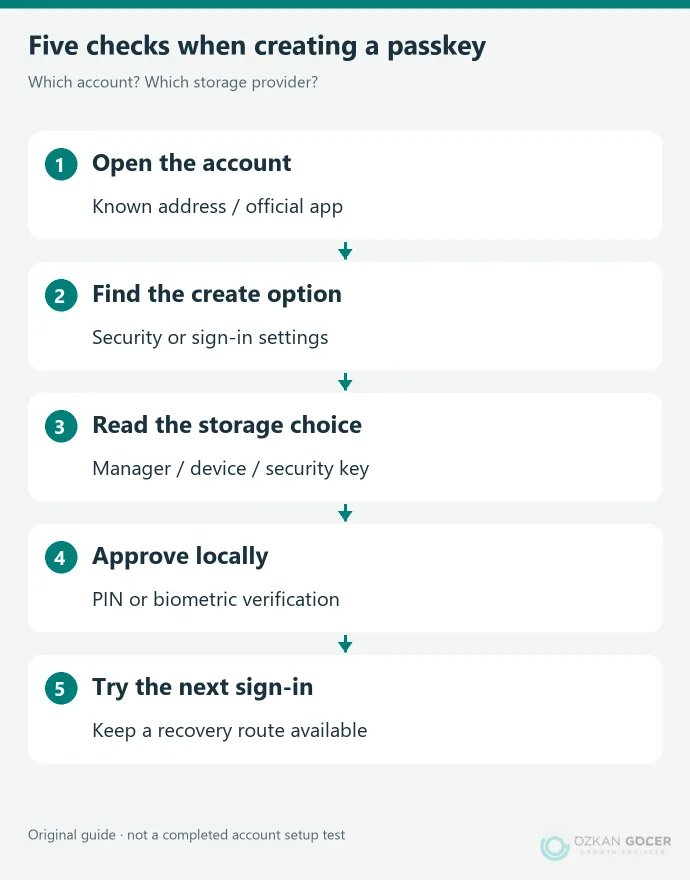
- Open the intended account. Reach security or sign-in settings through the service’s app or a known address. Check the account identity when you use several accounts.
- Find the passkey option. Look for an invitation to create one. Availability can depend on the service, browser and organization policy.
- Read the storage choice. The prompt may offer a credential manager, this device or a security key. Do not decide from the icon alone.
- Complete local verification. Use the requested PIN or biometric approval. Avoid registering a personal account on a shared computer.
- Check the record and next sign-in. Find the credential in the manager and account settings. Keep an existing recovery route available while verifying that a subsequent sign-in works.
For a Google Account, start at passkey settings. Google’s short setup explanation points to the same route. A request to verify your identity again before changing security information is not automatically a fault.
Find Where the Passkey Is Stored
A credential listed in account security settings is not the same as having access to the device that can use it. Find the website and account inside your credential manager. “I created it in Chrome” is not enough to identify storage: another provider may have been selected in the prompt.
Scroll sideways to read every column. Keyboard: focus the table and use the arrow keys.
| Storage type | What you need |
|---|---|
| Synced credential manager | Access to the same provider account and the verification required to unlock its vault. |
| Device-bound passkey | The old device or another previously arranged route into the account. |
| Physical FIDO2 security key | The key, a compatible connection and the requested local verification. |
Google Password Manager supports syncing with the same Google Account on eligible devices; its PIN or an appropriate device lock may be required. Apple uses iCloud Keychain. Keeping these provider accounts recoverable is different from relying on one phone’s existing session.
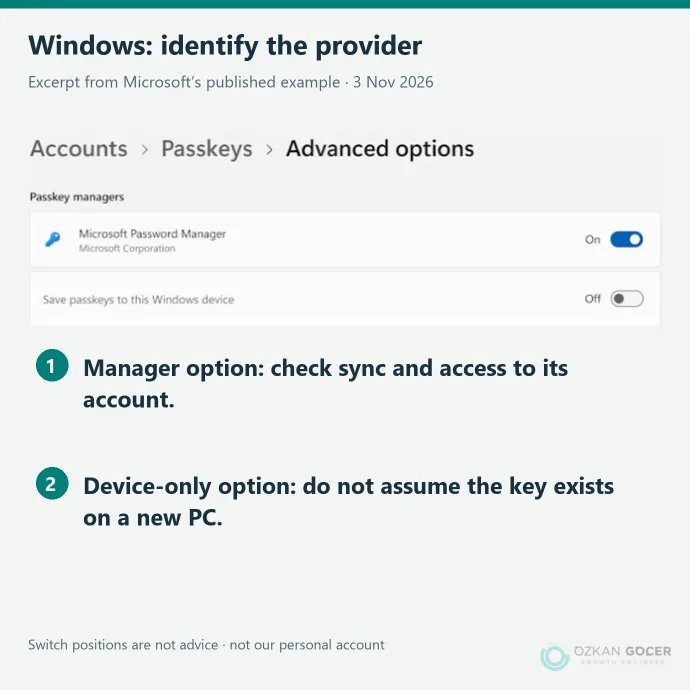
In Windows, Settings → Accounts → Passkeys exposes local records and available provider options. The image below comes from Microsoft’s published example. It does not demonstrate that we created a credential in a personal account.
What to Do When Changing Phones
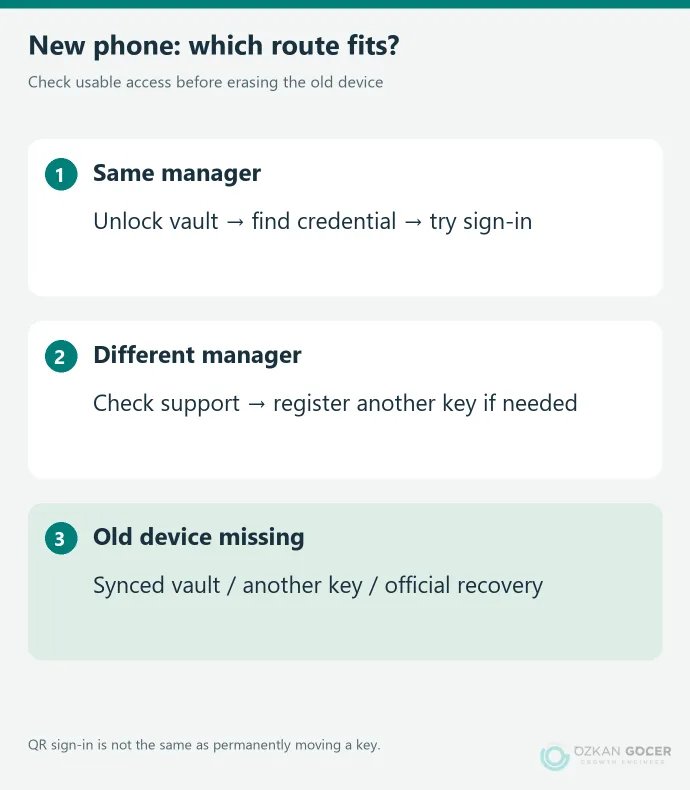
Keeping the same manager: complete the provider’s setup and verification on the new device, then try the relevant account. Confirm that the passkey is actually available rather than assuming sync worked. Check important accounts before erasing the old device.
Changing manager or operating system: check whether the new environment supports the existing provider. If not, the old phone may let you sign in so you can register a separate passkey in the new environment, where the service permits it. FIDO’s explanation separates cross-device sign-in from synchronization. Do not assume every credential transfers automatically between managers.
Using a device-bound credential: arrange usable access on the new device before removing the old record. Follow your IT team’s process for a work account. For personal accounts, the service’s supported alternative and recovery routes determine your options.
Does QR Sign-In Copy the Passkey?
A sign-in started on a computer may show a QR code so the phone can authenticate it. This does not necessarily save the passkey to the computer. FIDO cross-device authentication uses the nearby phone; Bluetooth helps verify proximity.
On Google, enter the username and choose the alternative passkey sign-in route. Scan the computer’s code with your own phone, check Bluetooth and connectivity, then approve on the phone. A QR image sent by someone else is not equivalent to a sign-in you deliberately started.
Why Does It Say There Is No Passkey on This Device?
- Wrong account or manager: compare the website identity with the selected user and unlocked vault.
- The local credential is elsewhere: you may need its device or a previously registered alternative.
- Compatibility or device lock: update the browser and system, then check screen lock and provider support.
- Organization restrictions: an administrator may limit options for a work or school account.
Microsoft’s troubleshooting guide helps check available credentials and providers. Google also notes that some newly created passkeys may need a waiting period before sign-in. Avoid deleting every record in response to a warning; try the service’s other sign-in route first.
What If the Phone Is Lost or the Passkey Is Deleted?
First check whether you still have an accessible synced manager, another registered key or an alternative the service accepts. Otherwise, use that account’s official recovery process. Recovering a credential vault and recovering one website account are different tasks with different requirements.
You may need to revoke the lost device’s credential at the account and review its active sessions. Deleting a local manager entry does not necessarily remove the service’s registration. Deleting from a synced vault can affect other devices. Identify the record and confirm another working sign-in route before removing it.
What Does a Passkey Protect Against?
Binding authentication to the intended service offers strong protection against handing a password or one-time code to a fake login page. WebAuthn’s verifier-name binding differs from ordinary OTP entry. An unlocked device, stolen session, malware or weak recovery route still needs attention.
For a suspicious request, review the signs of phishing. Finish with three practical checks: do you know the provider, does another device’s sign-in route work, and can you access recovery information? The account, device and network security guide covers the surrounding controls.