
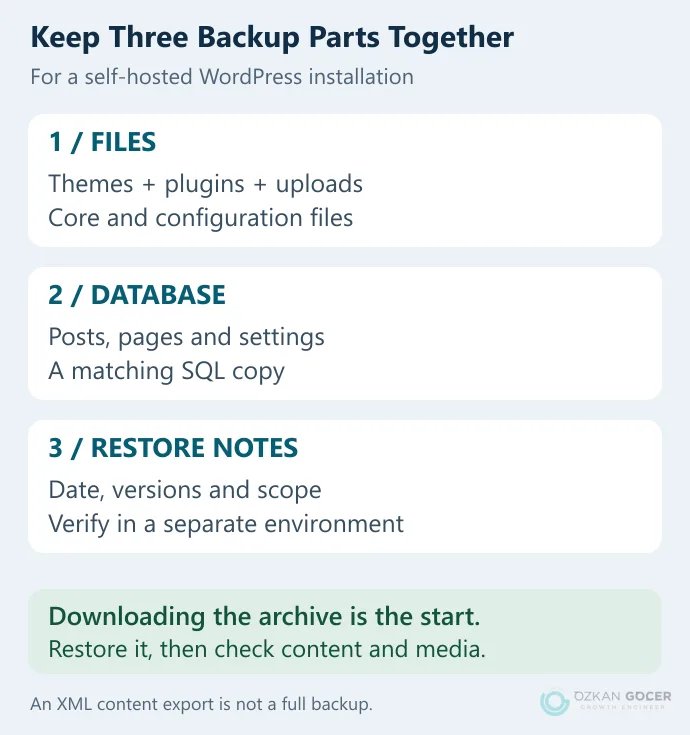
An XML export containing your posts may leave you without theme files, plugins or the actual uploaded images after a failed update. Downloading only the website directory can leave out the database containing posts and settings. Keep the two parts together as one identifiable backup set.
The steps below concern WordPress running on your own hosting. WordPress.com has a service and plan-specific backup and restore interface. See the WordPress introduction if you need to distinguish the hosting models first.
What Belongs in a WordPress Backup?
Scroll sideways to read every column. Keyboard: focus the table and use the arrow keys.
| Part | What it preserves | Why it is not enough alone |
|---|---|---|
| Database backup, usually SQL | Posts, pages, comments, user records and many settings | It does not contain the actual image and theme files. |
| Website files | WordPress files, themes, plugins, uploads and configuration | The database normally lives separately; downloading the directory does not download it. |
| Recovery note | Date, site, versions, backup method and restoration steps | You need to know which files belong with which database. |
The WordPress backup documentation treats files and the database as separate parts. A folder such as site-2026-10-22 could hold files.zip, database.sql and a recovery note. Keep the set outside the publicly accessible website directory: SQL and configuration files may contain private information.
Is Tools → Export a Full Website Backup?
No. Tools → Export creates a WXR/XML content export. “All content” does not mean every theme and plugin file is included. Media records or addresses may be present, but they do not replace a local copy of the actual image files.
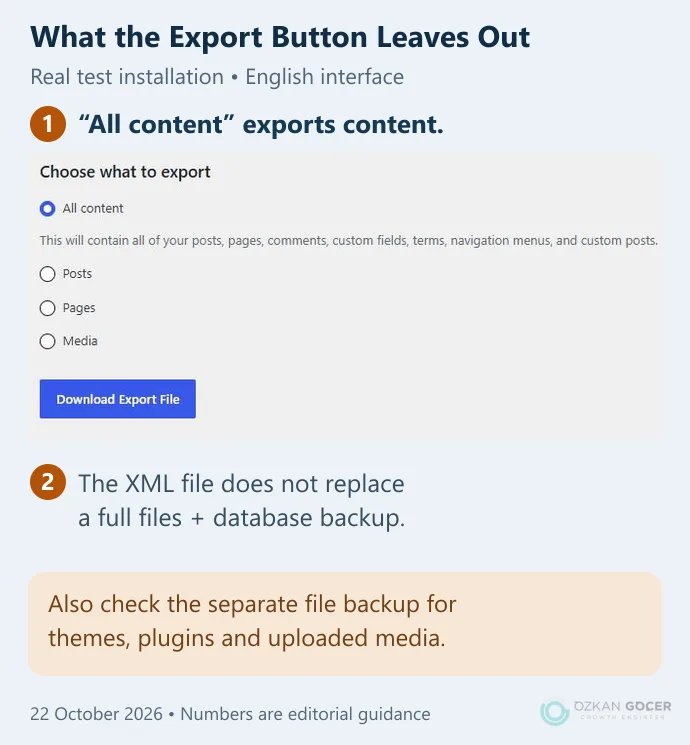
You can use XML with an importer in another installation. For complete recovery, keep the scope of that content export separate from a file archive and SQL backup. Recovering one earlier post is also a different task: WordPress revisions may be enough without rolling back the whole website.
Host Backups, a Plugin or a Manual Copy?
Scroll sideways to read every column. Keyboard: focus the table and use the arrow keys.
| Method | When it fits | Ask first |
|---|---|---|
| Hosting backup | A site managed through a provider's recovery panel | Are files and database included? How long are copies retained, and can you download or restore into another environment? |
| Backup plugin | Scheduling and off-site copies from WordPress | Does this edition include the complete backup, remote destination and restoration you need? |
| Manual files plus SQL | A user with server access who will manage both parts | Have I matched the correct website directory to the correct database? |
One plugin's archive may not work in another plugin. A package with a proprietary extension may need its original restore tool; renaming it does not make it compatible. “Daily backup” in a hosting offer does not automatically mean free or immediate recovery. The hosting comparison's backup and recovery checks explain what to ask before buying.
How to Take a Manual WordPress Backup
- Identify the site and time. Confirm which hosting directory belongs to the website. Take a fresh backup before a substantial update.
- Capture a consistent state. Theme changes or new orders during a file copy can leave the two parts representing different moments. Busy sites need the provider's consistent backup method or a planned maintenance window.
- Download the files. Include the site directory, wp-content, uploads, themes and plugins. Do not miss wp-config.php or hidden files such as .htaccess; compare the set with the WordPress file guidance.
- Export the correct database. Check its name in wp-config.php without sharing the credentials. Use phpMyAdmin or the hosting tool to export its tables as SQL. The official database instructions describe the available methods.
- Check the download. An empty or partial file is not a successful backup. Confirm that the archive opens, the SQL file exists and the dates match the intended set.
- Keep a separate copy. Use another access-controlled location that remains available if the hosting account cannot be reached.
Test the Restore in a Separate Environment
- Separate the destination. Prepare an empty test directory and separate database. Confirm that the test installation cannot write to the live database. Protect an internet-facing staging site with authentication; noindex is not access control.
- Restore the files. Extract the archive into the test directory, checking that the destination is not the live site.
- Import SQL into the empty test database. Do not import over current customer records. Match the table prefix to the configuration.
- Configure the test connection. Point wp-config.php to the test database. If the URL changes, use a method that preserves serialized data and run a dry run first. The WP-CLI search-replace documentation explains the options.
- Prevent real external actions. The copy must not send customer emails, payment requests or webhooks. Disable integrations or use test credentials and endpoints.
- Inspect actual content. Go beyond the homepage: check a post, page, image, navigation and relevant forms. Record both tested and untested functions.
Our Restore Test: What Came Back?
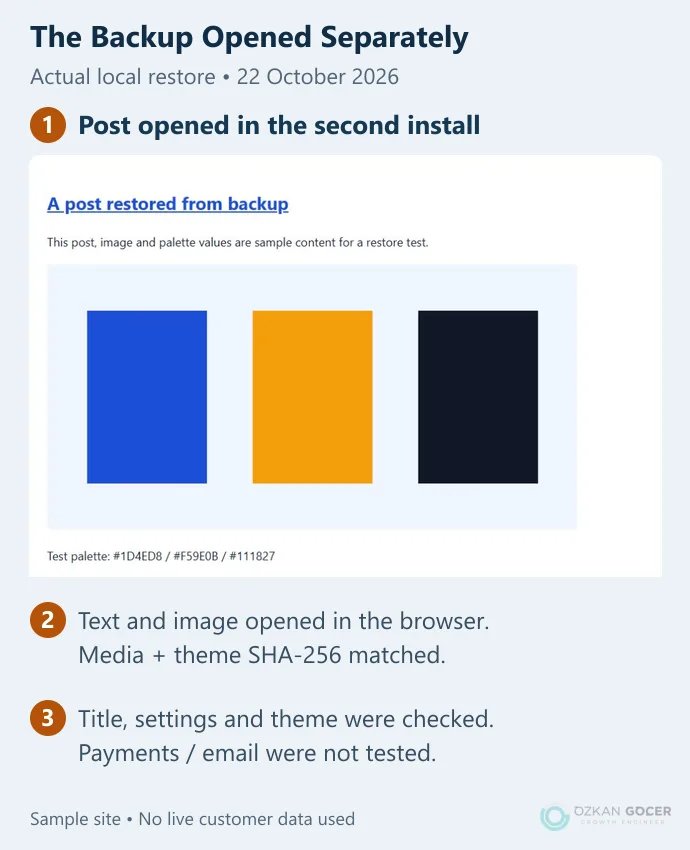
On October 22, 2026, a small local site was created with WordPress 7.1.3, PHP 8.2.12 and MariaDB 10.4.32. Two sample posts, a checklist page, one uploaded image and a minimal test theme were added. Files were archived as ZIP and the database as SQL, then restored into a second directory and separate database. WP-CLI replaced the addresses in that test copy.
Those versions document the experiment; they are not a production hosting recommendation. Use the current WordPress server requirements when choosing a new environment. No live website, customer data or payment account was used.
Scroll sideways to read every column. Keyboard: focus the table and use the arrow keys.
| Check | Result | What it establishes |
|---|---|---|
| Two sample posts and checklist page | Records and titles returned; both posts opened in the browser. | The sample content can be read from this backup. |
| Uploaded image | Matching SHA-256 hash; displayed in the browser. | The checked file's bytes were preserved. |
| Theme file and active theme | Matching file hash; Restore Lab was active. | The sample theme returned and is in use. |
| Site title, description and destination | Expected settings; address points to the separate directory. | The selected settings and environment separation were verified. |
This does not measure a hosting provider's recovery time or establish compatibility with every plugin. Orders, subscriptions, SMTP and third-party integrations were not tested. Add them to your recovery checklist if your own site uses them.
If Something Breaks After the Restore
- Database connection error: Check the test database name, user permissions and connection settings. Do not conceal the problem by reconnecting to production.
- Missing images: Inspect uploads, file permissions and image URLs. An XML media address is not the file itself.
- Redirects to the old site: Check home/siteurl, caches and old URL references. Avoid blind text replacement in serialized settings.
- Pages return 404: Compare permalink settings and server rewrite rules. A working homepage does not prove that other paths work.
- Recent orders disappear: An older database may not contain records created after its backup. Plan how to preserve those records before rolling a live store back.
Make Recovery Part of the Routine
A brochure site edited every two months and a store receiving orders throughout the day need different schedules. First decide how much newly created data you can afford to lose. Use that answer to set backup frequency, retention and additional pre-update copies, then repeat the isolated restore occasionally.
Record the date of the last working backup, where it is stored and who can restore it. Backups do not fix weak passwords or outdated plugins; combine them with the account and device security checks.
If you are rebuilding a WordPress website, we can agree on backup, staging and launch responsibilities alongside the design. My web design service can include those handover requirements so the finished site is something you can continue to manage.